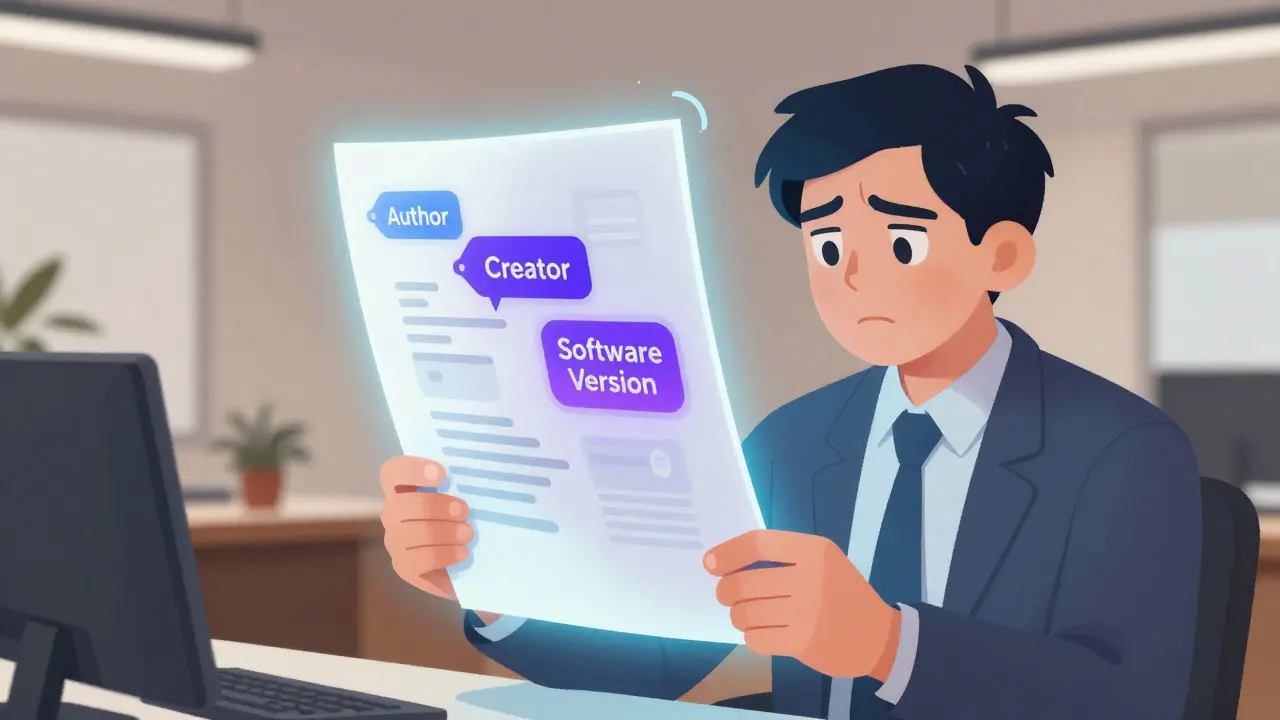
You’ve just finished a contract, a report, or a sensitive proposal. You’re ready to sign it digitally and hit send. But before you do, have you checked what’s hiding inside that file? Most people assume a PDF is just the text and images they see on screen. In reality, every PDF carries a heavy load of invisible data-metadata-that can reveal your identity, your software versions, internal project codes, and even deleted comments. If you sign a document without cleaning this data first, you lock those secrets into a permanent, legally binding record.
Inspecting a PDF Portable Document Format, a standard for document exchange created by Adobe Systems in 1993’s metadata isn’t just about tidying up; it’s a critical step for privacy, security, and legal compliance. Whether you are a lawyer sending court filings, a journalist protecting a source, or an employee sharing quarterly results, knowing what’s in your file is the only way to ensure you aren’t accidentally leaking information.
The Two Layers of Hidden Data
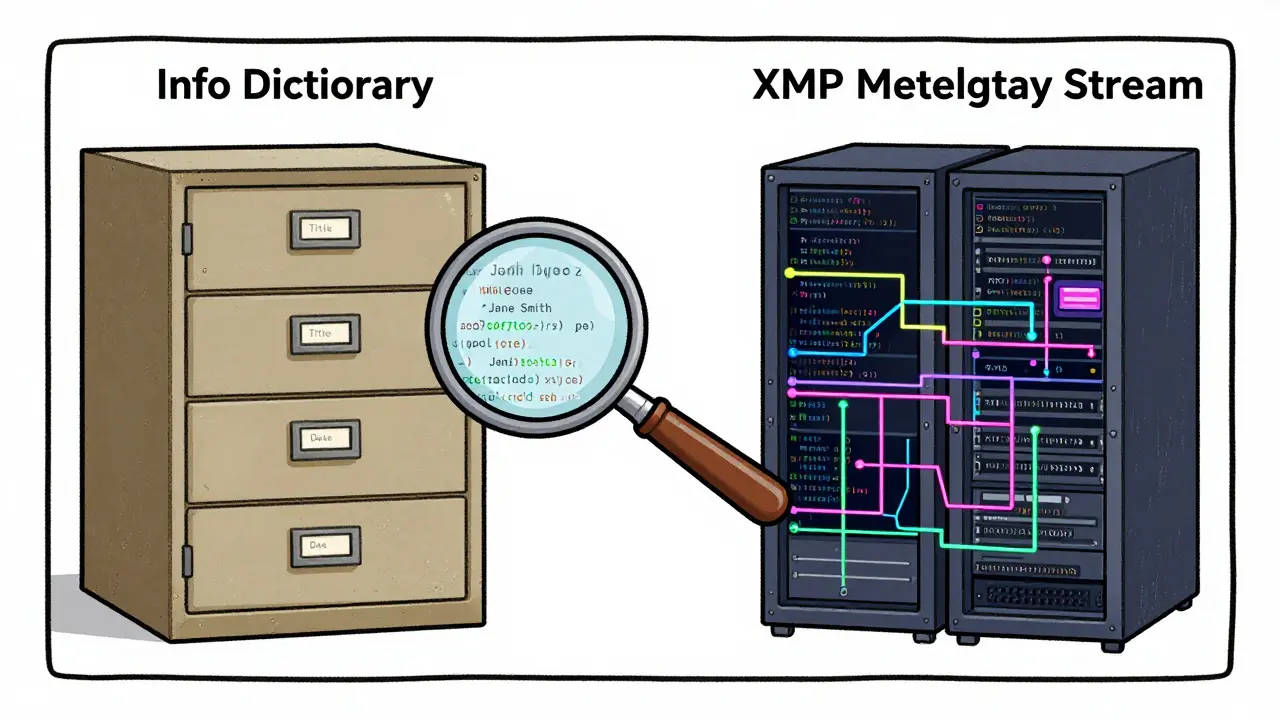
To understand what you need to inspect, you first need to know where the data lives. A standard PDF doesn’t store its details in one place. It uses two distinct systems that often contradict each other. If you only check one, you’ll miss half the story.
The first layer is the Info Dictionary A legacy metadata structure in PDFs containing basic fields like Author, Title, and CreationDate. This is the older, simpler system. It holds key-value pairs such as /Author, /Title, /Subject, /Creator (the app used to make the file), and /Producer (the engine that generated the PDF). When you right-click a PDF in Windows or macOS and select "Properties" or "Get Info," you are usually looking at a subset of this dictionary.
The second layer is the XMP Metadata Stream Extensible Metadata Platform, an XML-based standard for storing rich metadata within PDF files. Introduced by Adobe and later standardized as ISO 16684-1:2012, XMP is more complex. It stores data in XML format using schemas like Dublin Core. Crucially, the values in the Info Dictionary and the XMP stream don’t always match. You might have an /Author field that says "John Doe" but an xmp:creator field that says "Jane Smith." Or the creation dates might differ by months. Before signing, you need to know which version of the truth the file is telling.
What Specific Fields Should You Check?
Not all metadata is equally dangerous, but some fields are prime targets for leaks. Here is what you should look for before you apply a digital signature or attach the file to an email:
- /Author: This often contains your full name. In anonymous submissions or whistleblowing contexts, this is a major privacy risk. Even in corporate settings, if the document is meant to be from the "Legal Department," having an individual’s name here can bypass chain-of-custody protocols.
- /Creator and /Producer: These fields reveal the software used to create or convert the file. For example, "Microsoft Word 2019" or "Acrobat Distiller 21.0." Why does this matter? Security researchers use these strings to identify vulnerable software versions. If your company uses outdated tools, this metadata gives attackers a roadmap to exploits.
- /CreationDate and /ModDate: Timestamps can expose inconsistencies. If a document claims to be drafted in January but the modification date shows activity in March, it raises questions about authenticity. Also, check for timezone offsets that might confuse international recipients.
- /Keywords and /Subject: Internal tags like "CONFIDENTIAL," "DRAFT v2," or ticket numbers (e.g., "JIRA-1234") often slip into these fields. They provide context clues that could compromise operational security.
- Hidden Attachments: Beyond the main layers, check for embedded files. A PDF can contain entire spreadsheets, emails, or images stored in the /EmbeddedFiles tree. These attachments carry their own metadata and may contain confidential data not visible on the page.
Why Timing Matters: Inspect Before You Sign
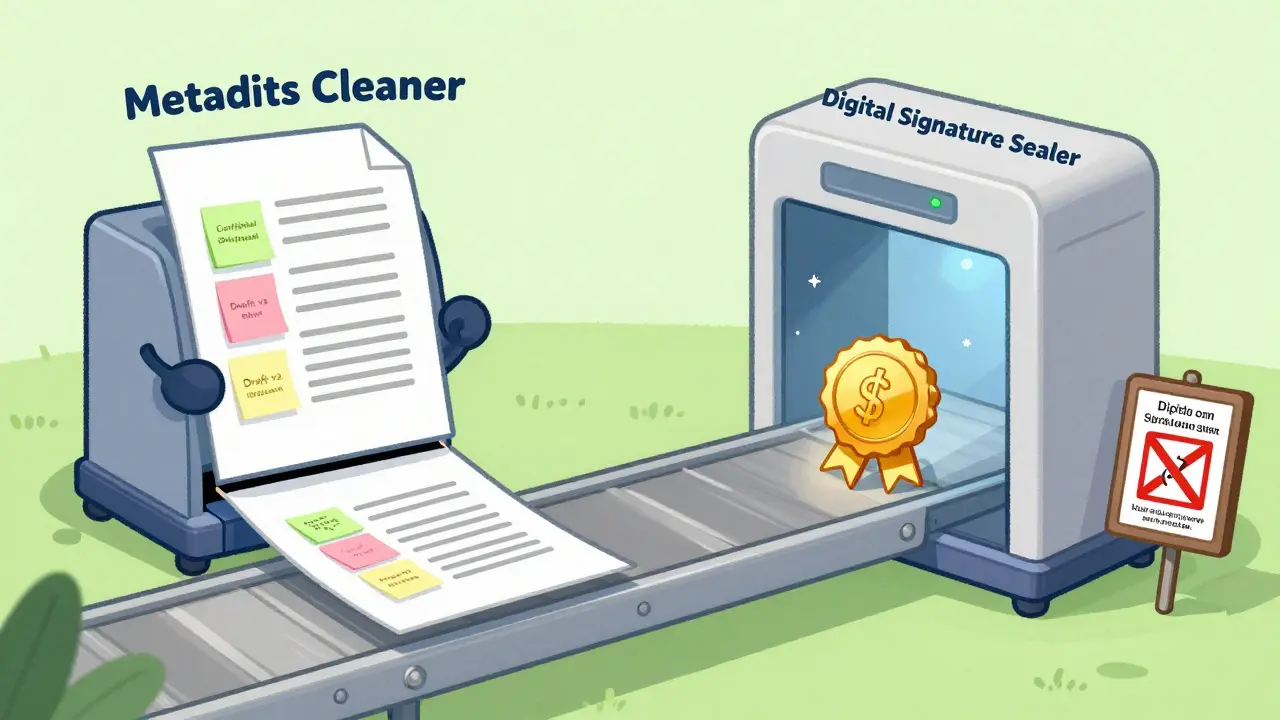
A common mistake is thinking you can clean metadata after signing. You can’t. A digital signature acts as a cryptographic seal. Once applied, any change to the document-including removing metadata-invalidates the signature. The signature proves the document hasn’t changed since the moment you signed it. If you sign first, then try to strip the author name, the signature breaks, and the document appears tampered with.
This means inspection and cleaning must happen *before* the final signature. If you are countersigning a document received from someone else, inspect it first. Check the existing signatures for validity and look for incremental updates. Tools like Group-IB’s analysis suggest that attackers sometimes append malicious content via incremental updates while keeping the original signature intact. Verifying the metadata and signature integrity ensures you aren’t endorsing a compromised file.
Tools for Inspection: Free vs. Paid Options
You don’t need expensive software to peek under the hood, but the right tool depends on your technical comfort level and privacy needs.
| Tool Type | Examples | Pros | Cons |
|---|---|---|---|
| Command-Line Utilities | ExifTool, pdfinfo | Highly detailed, scriptable, offline, free | Steep learning curve, no visual interface |
| Desktop GUI Apps | Adobe Acrobat Pro | Comprehensive, integrates with signing workflows | Expensive subscription, large install size |
| Browser-Based Tools | Vaulternal's Metadata Remover | No install, client-side processing, free | Requires modern browser, limited batch features |
If you are comfortable with code, ExifTool A powerful command-line utility for reading and writing metadata in files is the gold standard. It reads both the Info Dictionary and XMP streams and can output everything to a CSV for auditing. For quick checks, the pdfinfo command from the Poppler toolkit gives a snapshot of core fields.
For most users, however, command lines are intimidating. Adobe Acrobat Pro offers a "Document Properties" dialog (Ctrl+D) and a "Remove Hidden Information" feature, but it requires a costly subscription. There is a middle ground: browser-based tools that run entirely on your device. Vaulternal's PDF metadata remover allows you to view and strip metadata without uploading the file. Because it processes documents locally using WebAssembly, your sensitive contracts never leave your computer. This is crucial for legal and financial professionals who cannot risk sending proprietary data to third-party servers.
Step-by-Step: How to Clean Your PDF
Once you’ve identified the problematic data, here is how to handle it safely:
- Open the Inspector: Use a tool that shows both the Info Dictionary and XMP data. Look for discrepancies between the two layers. If the Author field is blank in one but populated in the other, you have a leak.
- Check for Embedded Files: Look for attachment icons or use a tool that lists embedded objects. Remove any unnecessary spreadsheets or drafts.
- Strip the Metadata: Delete the /Author, /Creator, /Producer, and custom keywords. Ensure the XMP stream is also cleared. Many naive cleaners only wipe the Info Dictionary, leaving the XMP data behind.
- Verify the Output: Re-inspect the cleaned file. Confirm that the visible content is identical. Good tools preserve pixel-perfect output without re-rasterizing the pages, which can degrade quality.
- Sign Last: Only after the file is clean should you apply your digital signature. This locks in the sanitized state.
Common Pitfalls to Avoid
One frequent error is relying on "Print to PDF" as a cleaning method. While this creates a new file, it often retains technical metadata like resolution and page dimensions, and it may not clear all XMP tags. It’s better to use a dedicated cleaner.
Another pitfall is assuming that anonymizing the visible text is enough. If you black out names on the page but leave the /Author field intact, anyone with a metadata viewer can still identify you. Always treat the metadata layer as part of the document’s public face.
Finally, don’t ignore the /Producer field. It’s easy to overlook, but it tells the world exactly what software you used. In high-stakes environments, minimizing this data reduces your attack surface.
Does deleting metadata invalidate a digital signature?
Yes. A digital signature covers the entire file content, including metadata. Any change after signing breaks the cryptographic seal. Always inspect and clean metadata *before* applying your signature.
Can I see PDF metadata in Windows File Explorer?
Windows File Explorer shows basic file attributes like size and modification date, but it does not display internal PDF metadata fields like Author, Title, or Creator. You need specialized software or a browser-based tool to view these details.
What is the difference between the Info Dictionary and XMP metadata?
The Info Dictionary is an older, simple key-value pair system. XMP (Extensible Metadata Platform) is a newer, XML-based standard that supports richer data. PDFs often contain both, and they can hold conflicting information. Both should be inspected and cleaned.
Is it safe to use online PDF metadata removers?
It depends on the tool. Many online services upload your file to their servers, posing a privacy risk. For sensitive documents, choose tools that process files locally in your browser (client-side) so the data never leaves your device.
Why does the Producer field matter?
The Producer field reveals the specific software and version used to create the PDF. Attackers use this information to target known vulnerabilities in that software version. Removing it helps reduce your security exposure.